Spotify
Spotify and Automix
If your Spotify player has Automix enabled and Spotify uses it for your playlist/queue then MS cannot accurately determine when a track will end. This is because the track is "mixed" in your queue with a shorter play time than its actual length and Spotify does not report this modified play time in its API. This does not affect MS's ability to scrobble from Spotify but it will affect the accuracy of the duration MS reports was played.
Authenticate Spotify with Multi-Scrobbler
Premium Account Required
Starting March 9th 2026 all applications on the Spotify Developer platform will only continue to work if they are owned by a Spotify Premium account.
If your App is not created by a Premium account you will likely recieve a 403 error when trying to use MS with Spotify.
If you do not have a Spotify Premium account you can still use Spotify with MS but it will require you to coordinate with a (friend?) user who does have Spotify Premium:
- Follow the steps below logged in as the Spotify Premium account user
- After completing App creation (step 4 or 5), navigate to the User Management page for the created App
- Add your (non-premium) account here using your account email/name
- Complete the rest of the authentication/configuration process normally
Assure your friend: Creating a Spotify Developer app does not give anyone access to the owner's account. The authentication process within MS is where authorization is given: it requires clicking the link in MS's dashboard and following a separate auth flow. This auth flow only authorizes access to the specific account used in the flow, unrelated to the owner of the developer app.
To access your Spotify history you must create a Spotify App to get a Client ID/Secret.
-
Login to https://developer.spotify.com with your existing Spotify account and accept Developer Terms
-
Navigate to your Spotify Developer Dashboard and start the Create App process
-
Determine the correct Redirect URI to use and set it in your App settings
Redirect URI Instructions
A Redirect URI is the URL that Spotify will navigate your browser to after you complete authorization. The URL will contain the code necessary for multi-scrobbler to get a Spotify access token.
Spotify no longer allows insecure URIs (start with http://) unless the address is 127.0.0.1 -- so localhost and internal IPs (192.168.0.xxx) no longer work.
Use one of the following methods to specify a valid Redirect URI and complete Spotify authentication with multi-scrobbler:
- HTTPS
- Run MS Locally
- Echo
- Echo from echo.multi-scrobbler.app
Use a domain you control, with SSL certificates/HTTPS enabled, to create a valid redirect URI.
For example, if you are already running multi-scrobbler behind a reverse proxy (nginx/traefik/caddy) at https://scrobbler.mydomain.com then set the Spotify Redirect URI for your Spotify App, and multi-scrobbler SPOTIFY_REDIRECT_URI ENV, to https://scrobbler.mydomain.com/callback
Alternatively, if multi-scrobbler is not accessible behind your domain, then use the Echo method with your own domain instead of 127.0.0.1.
Run multi-scrobbler, configured for a Spotify Source, from the same machine as your browser in order to get credentials.
In this scenario you can use http://127.0.0.1:9078/callback as the Spotify Redirect URI and multi-scrobbler SPOTIFY_REDIRECT_URI ENV.
After completing authentication, copy the contents of local multi-scrobbler's configuration folder to the final location of where multi-scrobbler will be run.
Use a docker container on the same machine your browser is on to "intercept" the callback URL from Spotify authentication, then manually finish the process by changing the domain to your multi-scrobbler instance.
- Create a container on the same machine as your browser using the
mendhak/http-https-echo:36image. This container runs a simple HTTP server that echos back any request it recieves.
docker run --rm -p 127.0.0.1:5079:8080 mendhak/http-https-echo:36
-
Set the Spotify Redirect URI and multi-scrobbler
SPOTIFY_REDIRECT_URIENV ashttp://127.0.0.1:5079/callback -
In Authenticate Spotify with Multi-Scrobbler (outside these Redirect Instructions) go to Step 4 and continue the instructions
Eventually, Spotify will redirect you to a web page with a URL like http://127.0.0.1:5079/callback?code=xxxxxx...
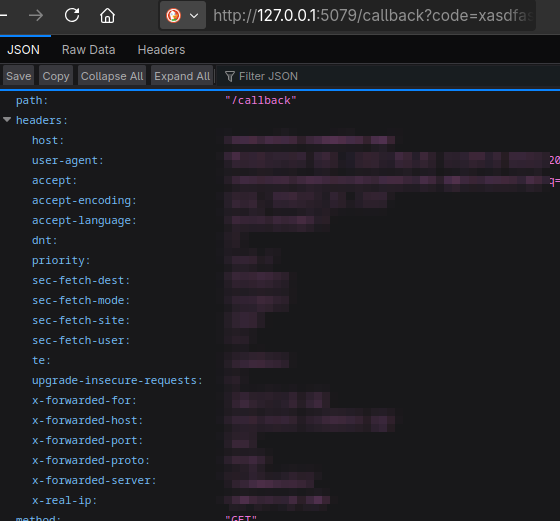
- In the URL, replace
127.0.0.1:5079with the address/IP for your multi-scrobbler instance so the URL is similar tohttp://192.168.0.101:9078/callback?code=xxxxxx.... Then navigate to this URL to complete authentication.
For your convenience, I run the mendhak/http-https-echo:36 container from the Echo approach on a domain I, the multi-scrobbler developer FoxxMD, control and self-host. Please be aware:
- I do not collect personal data or any querystrings/data sent in requests to this site
- It's not possible for me to use the code sent by Spotify to this URL without also having your Client ID/Secret
- However, there is always risk involved with trusting a service you do not control. Evaluate the risk of using this site for yourself.
Use the Echo approach, starting from Step 2, with https://echo.multi-scrobbler.app/callback as Spotify Redirect URI and multi-scrobbler SPOTIFY_REDIRECT_URI ENV.
-
Save your new App, then copy the Client ID/Secret from the App's Basic Information page.
-
Add the Client ID, Secret, and Redirect URI to the respective field/ENV in the configuration section below
-
Start multi-scrobbler, then visit the Web Dashboard and click (Re)authenticate on the Spotify card to start the auth process
Configuration
- ENV
- File
- AIO
This is configuration for the ENV Config Type.
| Environmental Variable | Required? | Default | Description |
|---|---|---|---|
SPOTIFY_CLIENT_ID | Yes | ||
SPOTIFY_CLIENT_SECRET | Yes | ||
SPOTIFY_REDIRECT_URI | No | http://localhost:9078/callback | URI must end in callback |
Config Structure
This displays the structure of the File Configuration for a spotify type Source with all possible properties, their shape, and descriptions/types. Use this to understand how to write a valid config.
Config Example
This displays an example config file of a spotify Source File Configuration that adheres to the shown Config Structure.
- text mode lets you edit the JSON directly.
- tree mode gives you a guided point-and-click editing experience that always keeps the JSON syntax valid.
Both modes validate that the configuraion is correct. Any errors show up as squiggly lines.
After you finish editing, switch to text and then copy all text to get a completed config.
Config Example Mobile Experience
This displays an example config file of a spotify Source File Configuration that adheres to the shown Config Structure.
The example config file editor is meant for a larger screen experience so only the read-only example is shown. Please use this site on a tablet/laptop/desktop to enable file editor features.
[
  {
    "name": "MySpotify",
    "enable": true,
    "clients": [],
    "data": {
      "clientId": "a89cba1569901a0671d5a9875fed4be1",
      "clientSecret": "ec42e09d5ae0ee0f0816ca151008412a",
      "redirectUri": "http://localhost:9078/callback",
      "interval": 60
    }
  }
]
Config Structure
This displays the structure of the all-in-one (config.json) configuration with all possible properties, their shape, and descriptions/types. Use this to understand how to write a valid config.
Select the spotify type from the respective sources node below, then expand it.
Config Example
This displays an example config file of a all-in-one (config.json) configuration that includes a spotify Source that adheres to the shown Config Structure.
- text mode lets you edit the JSON directly.
- tree mode gives you a guided point-and-click editing experience that always keeps the JSON syntax valid.
Both modes validate that the configuraion is correct. Any errors show up as squiggly lines.
After you finish editing, switch to text and then copy all text to get a completed config.
Config Example Mobile Experience
This displays an example config file of a all-in-one (config.json) configuration that includes a spotify Source that adheres to the shown Config Structure.
The example config file editor is meant for a larger screen experience so only the read-only example is shown. Please use this site on a tablet/laptop/desktop to enable file editor features.
{
  "sources": [
    {
      "name": "MySpotify",
      "enable": true,
      "clients": [],
      "data": {
        "clientId": "a89cba1569901a0671d5a9875fed4be1",
        "clientSecret": "ec42e09d5ae0ee0f0816ca151008412a",
        "redirectUri": "http://localhost:9078/callback",
        "interval": 60
      },
      "type": "spotify"
    }
  ]
}