Plex
Find your Plex Token and make note of the URL and Port used to connect to your Plex instance.
Allowed Users and Defaults
Multi-scrobbler will automatically scrobble for these users by default:
- The User authenticated with the Plex Token
- and the Local User
The Local User (PLEX_LOCAL_USER) is how Plex identifies anyone directly accessing the Plex UI from a local IP (who does not need to login).
To allow MS to scrobble for other users use usersAllow or PLEX_USERS_ALLOW (env) from the below configuration docs. However, because you are overriding the default settings you must also explicitly list the authenticated user and the Local User if you want them to also be able to scrobble.
Examples
Defaults
If usersallow and PLEX_USERS_ALLOW are not defined then the Plex Token authenticated User and Local User will be scrobbled for.
Only A Specific User
"usersallow": ["SomeUser"]orPLEX_USERS_ALLOW: SomeUser
Only the Plex user SomeUser will be scrobbled for. The Plex Token authenticated user and the Local User will not be scrobbled for.
A Specific User + Defaults
(Assuming the plex authenticated user is FoxxMD)
"usersallow": ["FoxxMD", "PLEX_LOCAL_USER", "SomeUser"]orPLEX_USERS_ALLOW: FoxxMD,PLEX_LOCAL_USER,SomeUser
The Plex user SomeUser, the Plex Token authenticated user (FoxxMD) and the Local User will be scrobbled for.
Allowed Libraries and Defaults
By default multi-scrobbler will only scrobble media found in Plex libraries that are labelled as Music.
librariesAlloworPLEX_LIBRARIES_ALLOWwill override this
Use Plex metadata with Musicbrainz for better scrobbling
Matching With Plex
In Plex, if the Plex Music Agent is set on a Music Library then Plex attempts to match your music with Musicbrainz when it is first imported.
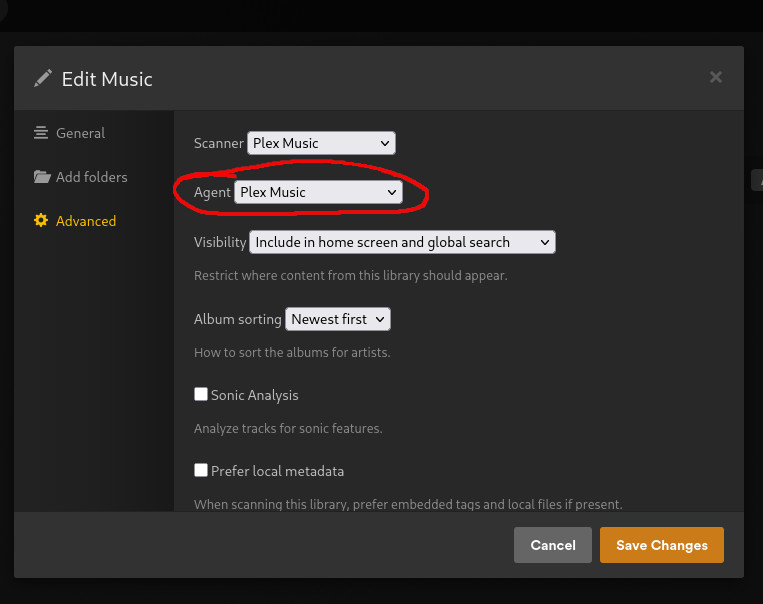
Plex uses ID3/metdata tags to match or falls back to matching based on file name and folder names. If it cannot find a match it can be fixed through a Fix Match option in the album/track context menu. See plex documentation for more information.
You can verify if an Item has been matched by:
- Clicking on the Item context menu (...)
- Get Info
- View XML
If a node like this is present then it has been matched: <Guid id="mbid://4e631558-13b0..."/>
Using Musicbrainz With Multi-Scrobbler
The MBID from the above <Guid> node is a Track, a special type of ID that specifically identifies a song on a specific album. If this is present then Multi-scrobbler can use it to gaurantee your scrobble, and all its metadata, is matched 1:1 with what is in your Plex library when using the Musicbrainz Stage to enrich your scrobble.
To configure MS to use Musicbrainz with your Plex metadata use one of the methods below:
- ENV
- File
- File AIO
Add to your multi-scrobbler docker compose file environment section for Musicbrainz ENV Configuration:
# a real email that Musicbrainz can use to contact you in case of issues
- MB_CONTACT=myEmail@myEmailProvider.com
- MB_PRESETS=id,default
- PLEX_TRANSFORMS=musicbrainz
Your AIO Config:
{
  // ...
  "transformers": [
    {
      "type": "musicbrainz",
      "name": "MyMB",
      "data": {
        "apis": [
          {
            // a real email that Musicbrainz can use to contact you in case of issues
            "contact": "myEmail@myEmailProvider.com"
          }
        ]
      }
    }
  ]
}
In your File Config:
[
  {
    "name": "MyPlex",
    "data": { /* ... */},
    "options": {
      "playTransform": {
        "preCompare": [
          {
            "type": "musicbrainz",
            "name": "MyMB"
            "searchOrder": ["mbidrecording", "basicOrIds", "basic"]
          }
        ]
      }
    }
  }
]
Your AIO Config:
{
  // ...
  "transformers": [
    {
      "type": "musicbrainz",
      "name": "MyMB",
      "data": {
        "apis": [
          {
            // a real email that Musicbrainz can use to contact you in case of issues
            "contact": "myEmail@myEmailProvider.com"
          }
        ]
      }
    }
  ]
  // ...
  "sources": [
    // ...
    {
      "name": "MyPlex",
      "type": "plex",
      "data": { /* ... */},
      "options": {
        "playTransform": {
          "preCompare": [
            {
              "type": "musicbrainz",
              "name": "MyMB",
              "searchOrder": ["mbidrecording", "basicOrIds", "basic"]
            }
          ]
        }
      }
    }
  ]
}
Configuration
- ENV
- File
- AIO
This is configuration for the ENV Config Type.
| Environmental Variable | Required? | Default | Description |
|---|---|---|---|
PLEX_URL | Yes | The URL of the Plex server IE http://localhost:32400 | |
PLEX_TOKEN | Yes | The Plex Token to use with the API | |
PLEX_USERS_ALLOW | No | Comma-separated list of usernames (from Plex) to scrobble for | |
PLEX_USERS_BLOCK | No | Comma-separated list of usernames (from Plex) to disallow scrobble for | |
PLEX_DEVICES_ALLOW | No | Comma-separated list of devices to scrobble from | |
PLEX_DEVICES_BLOCK | No | Comma-separated list of devices to disallow scrobbles from | |
PLEX_LIBRARIES_ALLOW | No | Comma-separated list of libraries to allow scrobbles from | |
PLEX_LIBRARIES_BLOCK | No | Comma-separated list of libraries to disallow scrobbles from |
Config Structure
This displays the structure of the File Configuration for a plex type Source with all possible properties, their shape, and descriptions/types. Use this to understand how to write a valid config.
Config Example
This displays an example config file of a plex Source File Configuration that adheres to the shown Config Structure.
- text mode lets you edit the JSON directly.
- tree mode gives you a guided point-and-click editing experience that always keeps the JSON syntax valid.
Both modes validate that the configuraion is correct. Any errors show up as squiggly lines.
After you finish editing, switch to text and then copy all text to get a completed config.
Config Example Mobile Experience
This displays an example config file of a plex Source File Configuration that adheres to the shown Config Structure.
The example config file editor is meant for a larger screen experience so only the read-only example is shown. Please use this site on a tablet/laptop/desktop to enable file editor features.
[
  {
    "name": "MyPlexApi",
    "enable": true,
    "clients": [],
    "data": {
      "token": "1234",
      "url": "http://192.168.0.120:32400",
      "usersAllow": [
        "FoxxMD",
        "SomeOtherUser"
      ],
      "usersBlock": [
        "AnotherUser"
      ],
      "devicesAllow": [
        "firefox"
      ],
      "devicesBlock": [
        "google-home"
      ],
      "librariesAllow": [
        "GoodMusic"
      ],
      "librariesBlock": [
        "BadMusic"
      ]
    },
    "options": {
      "logPayload": true,
      "logFilterFailure": "debug",
      "ignoreInvalidCert": false
    }
  }
]
Config Structure
This displays the structure of the all-in-one (config.json) configuration with all possible properties, their shape, and descriptions/types. Use this to understand how to write a valid config.
Select the plex type from the respective sources node below, then expand it.
Config Example
This displays an example config file of a all-in-one (config.json) configuration that includes a plex Source that adheres to the shown Config Structure.
- text mode lets you edit the JSON directly.
- tree mode gives you a guided point-and-click editing experience that always keeps the JSON syntax valid.
Both modes validate that the configuraion is correct. Any errors show up as squiggly lines.
After you finish editing, switch to text and then copy all text to get a completed config.
Config Example Mobile Experience
This displays an example config file of a all-in-one (config.json) configuration that includes a plex Source that adheres to the shown Config Structure.
The example config file editor is meant for a larger screen experience so only the read-only example is shown. Please use this site on a tablet/laptop/desktop to enable file editor features.
{
  "sources": [
    {
      "name": "MyPlexApi",
      "enable": true,
      "clients": [],
      "data": {
        "token": "1234",
        "url": "http://192.168.0.120:32400",
        "usersAllow": [
          "FoxxMD",
          "SomeOtherUser"
        ],
        "usersBlock": [
          "AnotherUser"
        ],
        "devicesAllow": [
          "firefox"
        ],
        "devicesBlock": [
          "google-home"
        ],
        "librariesAllow": [
          "GoodMusic"
        ],
        "librariesBlock": [
          "BadMusic"
        ]
      },
      "options": {
        "logPayload": true,
        "logFilterFailure": "debug",
        "ignoreInvalidCert": false
      },
      "type": "plex"
    }
  ]
}